Your notes
Note templates Pro
updated
Choose the shape of your summaries — six built-in templates or your own sections and style rules — while the transcript underneath is left exactly as Oris transcribed it.
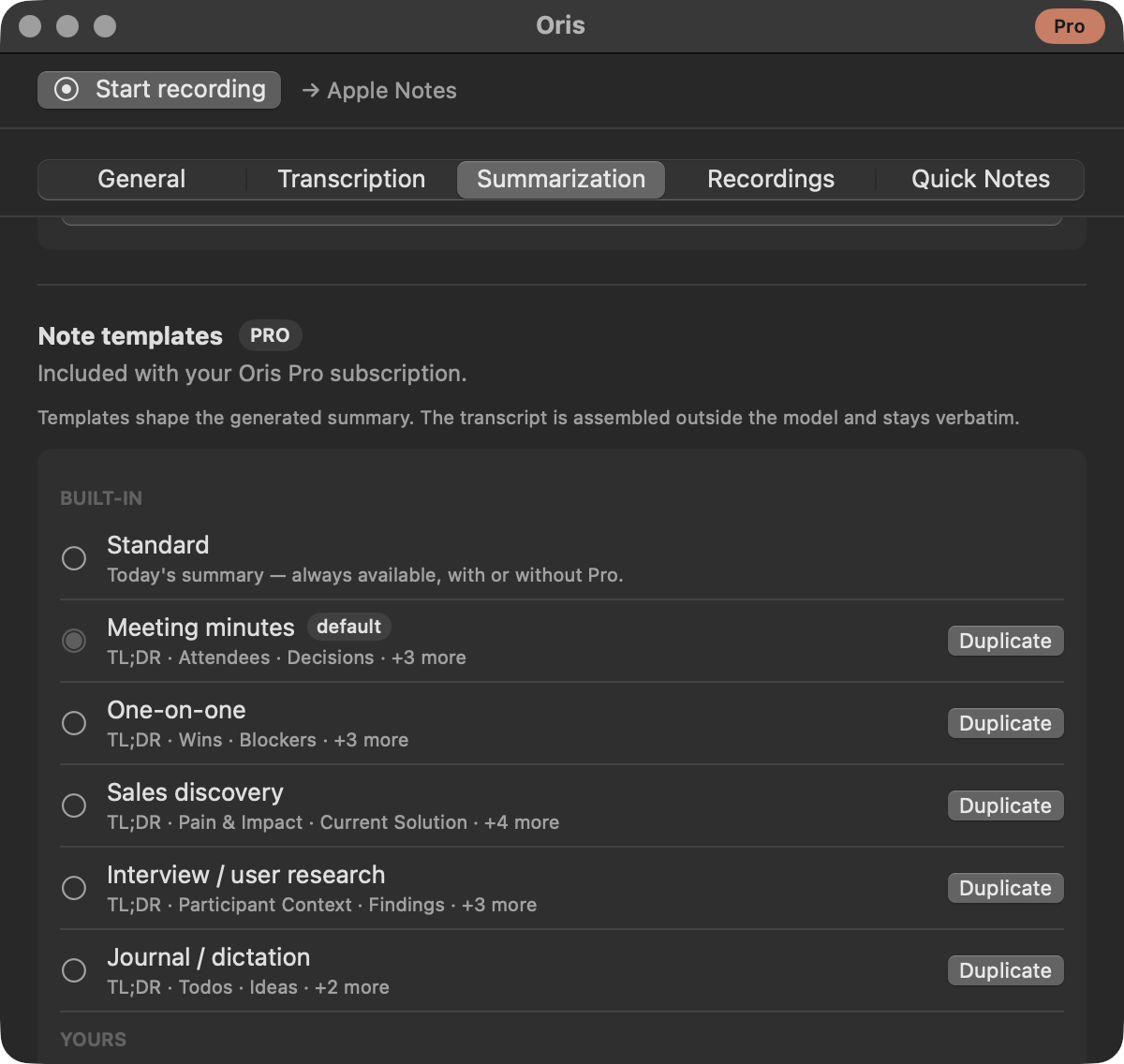
A summary of a sales call and a summary of a one-on-one want different headings, and until now every Oris note got the same ones. Note templates let you say what a summary should contain: pick one of six built-ins, or duplicate one and rewrite its sections into the shape your notes actually take. Templates live in the Oris app under Settings → Summaries → Note templates; the provider you summarize with is one tab over, under Settings → Providers — a template and a provider are two halves of the same question.
Templates are part of Oris Pro, free in beta. Until Pro is on, the group is locked — a lock beside its Pro badge — and the signup banner below the window is the way in.
What a template changes, and what it doesn’t
A template shapes the generated summary and nothing else. A template is a set of instructions to the summarizer, and the summarizer never writes the transcript. That comes from Oris’s on-device speech recognition, and your note is put together outside the summarization model: the summary block above, and below it the transcript exactly as it was transcribed. There is no path by which a template can drop a line of it, reword it, or reorder it — whatever transcription produced is what lands in your note, the same as it does today.
The structure around the summary is fixed too. Every summary Oris writes opens with a single Summary heading, and a template’s sections sit one level beneath it. Templates name sections, never the block itself. That is load-bearing rather than stylistic: that heading is how Oris recognizes a summary it wrote earlier, which is what makes retrying a failed one possible at all. So a template changes the headings inside the block and the words under them; the block itself, and the transcript below it, stay where they were.
The six built-ins
Built-ins are immutable and always present. A Default dropdown above the list is what sets your default template, and every recording, import, and retry from then on uses it — unless you’ve given a particular destination a template of its own, which is the one thing that outranks the default. The list marks whichever one is current, and deleting a template you made takes two clicks: the trash turns into Delete? for a few seconds, and only a second click removes it.
| Template | Sections it asks for |
|---|---|
| Standard | Today’s summary, unchanged — the default, and the one everything falls back to |
| Meeting minutes | TL;DR, Attendees, Decisions, Action Items, Open Questions, Next Meeting |
| One-on-one | TL;DR, Wins, Blockers, Feedback, Growth & Career, Action Items |
| Sales discovery | TL;DR, Pain & Impact, Current Solution, Decision Process, Budget & Constraints, Objections, Next Steps |
| Interview / user research | TL;DR, Participant Context, Findings, Quotes, Pain Points, Follow-ups |
| Journal / dictation | TL;DR, Todos, Ideas, Open Loops, Notes |
With structured notes turned on, Meeting minutes has its Decisions and Action Items sections — and One-on-one its Action Items — replaced by extracted, quote-grounded items when extraction succeeds: same headings, same placement, but every entry carries the sentence in the transcript that backs it. The model still writes those sections on every run, so when extraction can’t deliver, its prose stands rather than the section going missing. The other built-ins keep their model-written prose throughout. Sales discovery’s “Next Steps”, Interview / research’s “Follow-ups”, and Journal / dictation’s “Todos” ask for different content than extracted action items, so they stay as they are. With the toggle off, all six behave exactly as they always have.
Some sections in each are marked required — Oris checks they’re present before a templated summary lands (see when the model doesn’t follow the template for what happens when they aren’t). The rest are optional: Oris asks for them to be left out when the recording gave them nothing, rather than printed with “None” underneath. Several carry a tone of their own — the one-on-one asks for warm and plain rather than a status report, the interview template asks for what was said rather than what it implies.
Standard is the floor. It produces exactly the summary Oris has always produced, it can’t be edited or deleted, and it is what a run falls back to whenever anything about a custom template doesn’t work out. It is also what keeps writing your notes without Pro, which is the arrangement described at the bottom of this page.
Making your own
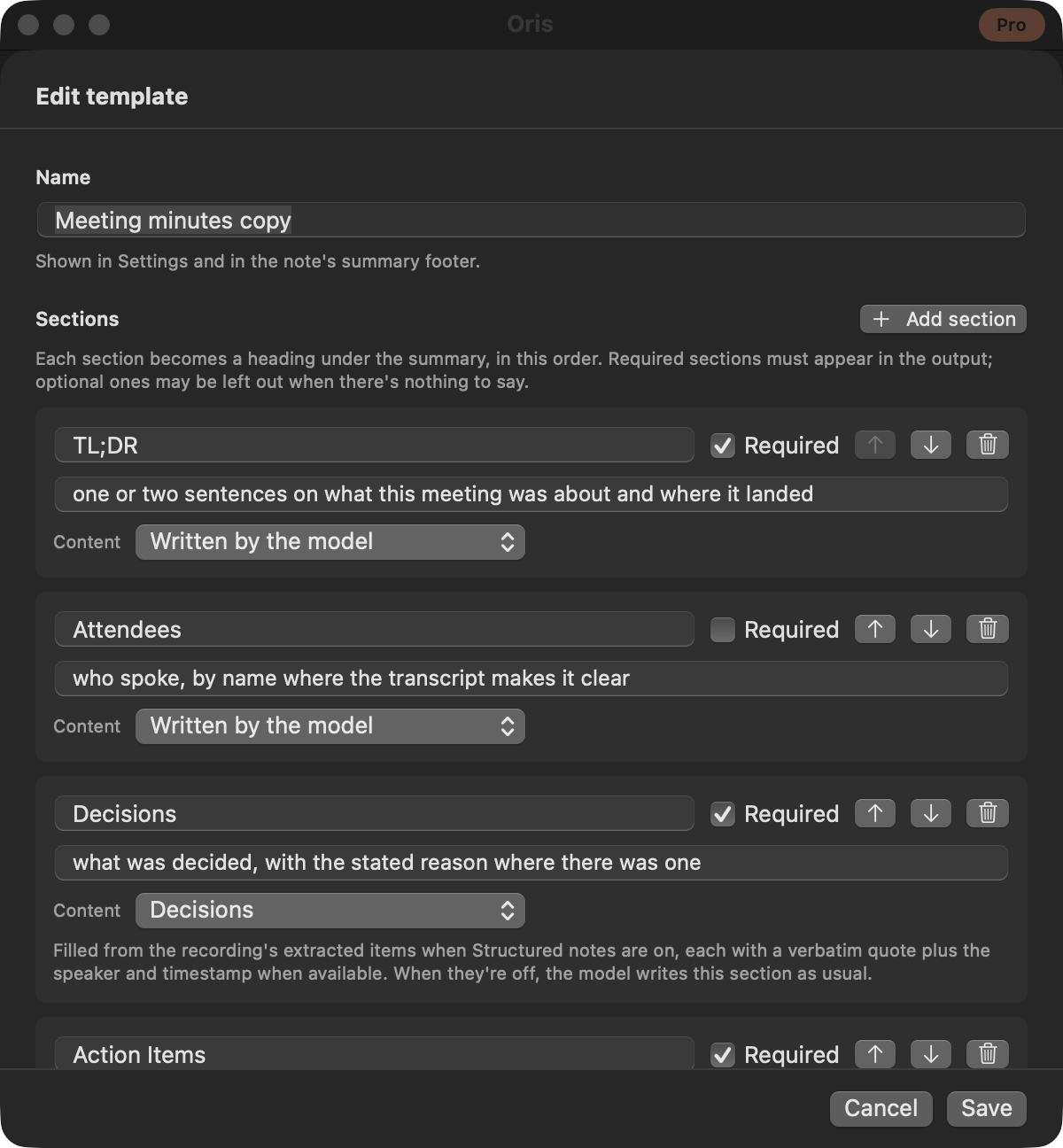
Built-ins can’t be edited, so the way in is Duplicate. Duplicating any built-in except Standard gives you an editable copy named after it, with all of its sections already filled in, and the copy remembers what it was based on. New template starts from an empty one instead.
The editor is a sheet with two halves. At the top, Sections: one row per heading, each with an optional one-line hint saying what belongs under it, a Required checkbox, arrows to reorder, and a Content picker offering Written by the model (the default), Decisions, or Action items. The last two make the section a landing site for structured notes: the model writes it like any other section on every run, and when that toggle is on and extraction succeeds, the extracted items replace what the model wrote there. The order you put them in is the order the summary is asked for. Below that, Style:
- Tone — a sentence describing how the summary should read (
direct and factual, no hedging). - Detail — Brief, Standard, or Detailed. It also decides how much room the model is given to write, so a long template doesn’t get cut off mid-section.
- Preferred terms — one per line: product names and in-house vocabulary the summary should use.
- Banned phrases — one per line: words you never want to see.
There is no free-text prompt box. Templates are typed fields with limits: at most 12 sections per template, 24 templates of your own (the built-ins don’t count against that), and a ceiling on the composed instructions as a whole. Nothing is ever silently trimmed to fit — a value over its limit is refused with the reason next to the field, and the sheet stays open.
Previewing a template
Under the editor is Preview. It runs a real summary, through the provider you have configured, against a sample transcript that ships with Oris — a short two-person conversation with decisions, owned action items, a quotable line, and a question left open, so every section of every built-in has something to land on.
It is a genuine run rather than a mockup, so it takes as long as a real summary would, and the panel narrates the wait: preparing the model, waiting for another summary to finish with it, writing, checking the output. What comes back is the summary markdown exactly as it would appear in a note, footer included.
Two things make it safe to use freely. It never touches a note — no file of yours is read or written. And you don’t have to save first: the draft in front of you is what gets previewed, so you can try a section, look at the result, and change it again before anything is stored. Editing a field clears the result, because a summary from the previous draft would be misleading. If a recording is being processed, Preview is unavailable — the button disables itself and says why, then re-enables on its own once the pipeline finishes, so it never competes with a real recording for the model.
A different template per destination
Under Template per destination — a collapsed disclosure at the bottom of the group — each destination you’ve set up can be pointed at its own template. A destination’s template wins over the default; everything else keeps using the default. A destination keeps its template when you change its options, as long as its notes still go to the same vault, folder or Notes folder; pointing it somewhere else starts from the default. The dropdown’s first option is Inherit default, naming whichever template that currently is.
The order Oris resolves is short: the destination’s override, then your default template, then Standard. An id that no longer resolves to anything never breaks a run — it falls through to the next rung. If a destination was pointing at a template you have since deleted, the row says so and offers to clear the leftover setting.
Start a recording already set to a template
Two ways to begin a recording with a template chosen up front, both part of Pro:
- The menu bar. Once you have templates, the menu bar icon’s Start recording grows a submenu: the default start first, then one entry per template besides Standard. Pick one and the recording begins with that template chosen, whatever app you’re in and with Obsidian closed.
- A global hotkey. Each template row under Settings → Summaries → Note templates has a shortcut field: click it, press a combination, and that hotkey starts a recording with that template from anywhere. Standard doesn’t take one here, because the plain Start recording hotkey — free, under General → Meetings as Recording hotkey — already covers it, resolving through your per-destination override or default the way every recording does; set your default to a template and that free key starts recordings with it. The two live in one pool, so a combination one of them holds is refused for the other rather than silently taken. As with the Quick Note hotkey, macOS quietly owns many combinations; if a hotkey seems to do nothing, try a different one. Press any bound hotkey again while that recording is running and it stops — the same press-to-start, press-again-to-stop rhythm as Quick Note.
A recording started either way pins your choice at start, the one exception to template selection happening when the summary is written. The template itself is still read at summarize time, so edits you make mid-recording apply, and a template deleted before the summary runs falls back the way a missing template always does. Everything else about the note is unchanged.
Trying a template on an existing note
Templates apply to summaries as they’re written, but the Re-summarize action in the Recordings list lets you apply one to a recording that has already landed. Its sheet has a field for instructions — free for everyone — and, with Pro, a Template picker beside it: pick a template, press Re-summarize, and just that note’s summary block is rewritten in that shape. The transcript underneath is untouched.
The picker’s first option is Default, meaning “use whatever template a new recording to this destination would use right now” — your per-destination override, then your default, then Standard. That is what a re-run does when you don’t pick anything, which is the case for every re-run without Pro. Note the right now: Oris doesn’t remember which template originally wrote a summary, so a re-run of a recording you started from a template shortcut, or one made before you changed a template, resolves through today’s setup rather than reproducing that day’s. Picking explicitly is how you get a specific shape.
Because Oris re-summarizes from the recording’s saved transcript rather than the audio, this only works while that transcript is still on disk; audio retention eventually removes it along with the audio.
When the model doesn’t follow the template
Small models don’t always do as they’re told, so Oris checks the output before it lands. If the summary breaks the Summary heading, introduces a second top-level heading, or drops a section you marked required, it is regenerated once with the standard prompt, and the standard summary lands with a one-line italic note above the footer saying the template’s output failed validation. The same single re-run covers a provider rejecting the template’s prompt outright. There is no repair loop: at most one extra generation, ever.
If that second attempt fails too — the provider went down between the two, say — and the on-device fallback can’t write it either, nothing special happens, which is the point: you get the ordinary ⚠️ summary-failure block, the transcript lands as it always would, and the retry is there when you want it. Summarizing has always been best-effort, and a template doesn’t change what happens when it can’t be done. See when a summary fails.
What’s checked is narrow on purpose: that the headings you marked required are present, and that the summary block is still one block. Not that there’s something interesting under each heading. A model can’t write what the recording doesn’t contain, and demanding a filled-in section from a meeting that never touched the subject would buy structure with invented content. So what’s enforced is that a templated summary never lands without the sections you said you can’t do without — a run that fails that check lands as the standard summary with a note saying so, not as a templated one missing pieces. Everything else — how the optional ones behave, the order they come back in, what actually sits under each — is the model following your instructions, which is usually but not always the same thing.
A summary block ends with a footer naming the provider and model, and a template’s name is added to it when that template’s own prompt wrote the summary. If the fallback wrote it, the footer carries no template name — it is a claim about which prompt produced those words.
A recording with nothing substantive in it still succeeds. Oris has always answered a silent or unintelligible recording with a single line saying no substantive content was detected, and a templated run is no different: that result is a valid outcome, not an error. It never produces a failure block and never leaves a failed-summary record for you to retry.
Which model to run them on
A template is a lot of instruction to follow at once: exact headings, hints, a tone rule and both word lists. The small on-device model that handles standard summaries fine reliably misses required headings when a template asks for them. So on the on-device path, templated summaries run on the larger on-device model — the same floor structured notes use — which needs a Mac with 16 GB of memory or more. On a Mac below that floor where no other provider handles the summary, Oris doesn’t attempt the template: your note gets the standard summary, exactly as it would without a template selected. Cloud providers and Ollama are unaffected, running templates with whatever model you’ve configured, and if you’ve pinned a specific local model with the model override, your pin is honored instead of the size check.
Pro, and what free always gets
Note templates are part of Oris Pro. Signing up takes an email — no card, no payment. Pro is free for now; when pricing starts, you get three months on us.
If Pro ever lapses, custom templates you made are kept, never deleted. What changes is selection, which is a pointer rather than content: the app sets your default back to Standard and clears any per-destination overrides, so notes go back to the standard summary, and the list turns read-only. The group says so in as many words: “Your templates are kept, not deleted. Built-in templates stay available, and notes keep using the standard summary until Pro is active again.”
The selections aren’t lost either, just moved. Oris records what you had chosen before it reset anything, and when Pro is active again it writes those choices back — unless you’ve picked something else in the meantime, in which case your newer choice stands. So the round trip out of Pro and back into it costs you nothing but the time in between.
The free floor is the summary Oris writes today plus the full transcript underneath, untouched by any template. That is exactly what free has always had, and it is what free keeps. Templates sit above that floor rather than replacing part of it.
Good to know
- Templates are read when the summary is written, not when you press record. Change your default while a recording is still transcribing and that recording’s summary uses the new one — unless you started it with a template chosen, in which case that choice holds. Retrying a failed summary picks up whatever is selected at retry time, which is usually what you want.
- Imports get the same treatment. A transcript or audio file you import is summarized through the same path as a meeting, so it uses the same template selection.
- Re-summarizing a note is free; picking the template for it is Pro. Typing instructions and re-running is manual effort, and manual effort stays on the free floor. What Pro adds is choosing a saved template for that one re-run, and having a destination apply one automatically.
- The whole group follows Enable summaries. Turn summaries off and there’s no summary to shape; the transcript lands on its own. See turning summaries off.
- A template problem never costs you a note. If Oris can’t read your saved templates, it says so on the tab, leaves them alone rather than repairing or replacing anything, and summarizes with the standard template until you’ve sorted it out.