Your notes
What lands in your note
updated
The summary block, the transcript, the footer naming what wrote it, how the two sides of the call are told apart, and what each destination does differently.
When a recording finishes, its note gets two things: a summary block carrying a TL;DR, action items, decisions, open questions, topics discussed and notable quotes, and the full transcript. In Obsidian the transcript sits folded under a line you click to expand, so it stays out of your way until you want it. Where the note goes depends on your destination. A recording you start from the Obsidian plugin replaces its marker in place when the destination is an Obsidian vault; any other recording, and a plugin recording with another destination, follows the chosen destination’s placement rules (a new note, or for a Markdown folder in append mode the end of the chosen note). The table below sets out the differences. Sections with nothing in them are left out rather than printed empty. Below both, a small footer (_Summarized by **provider** (model)_) records which backend wrote the summary, so you can always tell what Auto picked.
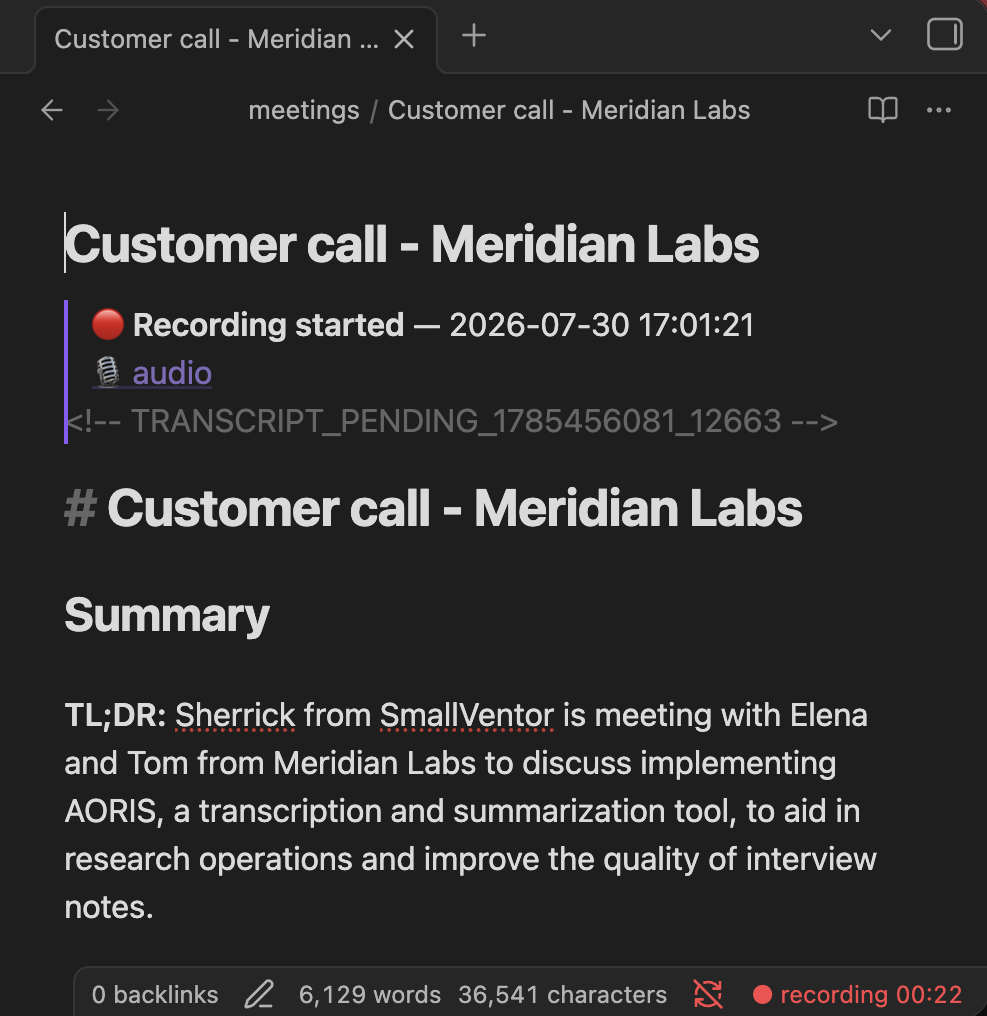
Those sections are the standard shape, and it’s a shape you can change: note templates let a summary ask for your own headings, and structured notes turn Decisions and Action Items into extracted items that each quote the transcript line backing them. Both are part of Oris Pro; without them, every note whose summary lands gets the standard shape above.
Turn off Settings → Summaries → Enable summaries and the transcript still lands, as a plain section with nothing above it. See turning summaries off.
If summaries are on but the summary fails, the transcript lands exactly as it would have. In place of the summary you get a visible ⚠️ block naming the provider, what went wrong, and how to retry. Oris remembers the failure, so the retry command and the app’s Recordings history can both offer you a retry later. See when a summary fails.
What each destination supports
The summary, the transcript and the footer are written once and reach every destination with the same words. What differs is where the note goes, and how much of its formatting the app you keep it in can show. Notion is planned, and it joins this table when it ships.
| Obsidian vault | Markdown folder | Apple Notes | |
|---|---|---|---|
| Where a meeting lands | Started from the Oris app, the menu bar or a hotkey, a new note in the vault’s inbox/ folder, named meeting- and the date and time it was written: meeting-2026-07-31_14-02-37.md | A new note in the folder, named by your pattern, which is the date, time and title until you change it: 2026-07-31 14-02 Meeting.md. Or the end of the one note you chose to append to | A new note in the folder you chose, titled with the date and time the recording started and the meeting’s title: 2026-07-31 14-02 Meeting |
| The marker from the plugin | Start recording from the Obsidian plugin and the transcript replaces the invisible marker at your cursor, even if you rename the note | The marker stays in the vault note you were typing in, and the meeting lands in the folder as usual | The marker stays in the vault note, and the meeting becomes a new note in Notes |
| The transcript | Folded under 📜 Full transcript when there’s a summary, shown in full when there isn’t | The same fold, written as HTML tags | Shown in full under a heading, because Notes has nothing that folds |
| Summary and structured notes | The full summary, its footer and the Pro structured notes, with action items as checkboxes | The same, with action items as task-list lines | The same words, with action items as plain bullets, because Notes drops a checkbox along with its item |
| What your editor has to show | Nothing extra: Obsidian shows the fold, the checkboxes and the [[wikilinks]] | HTML for the fold, task lists for the checkboxes and [[wikilinks]] for the recording and source lines. An editor without them shows the raw text | Nothing: Oris writes only what Notes keeps. Rules and tables are left out, block quotes become italics, and a wikilink becomes the plain file name |
| Imports | A new note with properties at the top saying where it came from, then a Source line | The same properties and Source line | Only the Source line naming the file, since Notes has no properties |
| Retrying a failed summary | The ⚠️ block is replaced in the note | The same | The new summary arrives as its own note, Summary — <the meeting's title>, in the same folder |
| Re-summarize… | The summary is replaced in the note | The same | The summary is replaced in the note, as long as it is still in its folder |
| While Oris is quit | Meetings still land | Meetings still land | Deliveries wait until you open Oris |
| On your other devices | Synced by whatever syncs the vault, such as iCloud Drive or Dropbox | Synced by whatever syncs the folder | A folder in your iCloud account syncs to your other devices, and one On My Mac stays on this Mac |
Who said what
Because Oris records your microphone and your Mac’s system audio as two separate tracks, the transcript comes back already split by side, with no diarization setup to configure. Anything captured through the mic is tagged me, and anything captured from system audio, whether that’s Zoom, Teams, a browser tab or a phone call played through the Mac, is tagged others. Consecutive segments from the same side get grouped under one block, with timestamps in _[mm:ss]_ format.
One limitation is worth knowing: every remote participant pools under others. Separating remote speakers from each other is a v2 feature rather than something the product does today. If you need to attribute a specific quote to a specific person, the timestamp plus your own memory is the workflow.
Pro · coming Telling the people on the other side of a call apart is coming to Oris Pro.
How it works underneath
Speaker bleed cleanup, when you record on speakers
If you take a call with the audio coming out of your laptop speakers rather than headphones, your microphone hears the other side as well as you do. Left alone, that lands the same sentence twice in the transcript: once cleanly on the others track, and once as a muddier echo on the me track, which reads as though you repeated everyone.
Two passes clean it up. The first is a text-similarity check that compares what the two tracks heard around the same moment and drops the near-duplicate from your track. The second is an independent check of whether your microphone actually heard speech at that point, which catches the leftovers the first pass is too cautious to remove.
Both run automatically on every recording. Headphones sidestep the problem entirely, because the mic never hears the far side in the first place.
The silence-hallucination filter
Whisper is known to invent text on silent audio, usually short stock phrases like “Thank you.”, “Thanks for watching.”, “All right.” or “Bye.” Because Oris transcribes your microphone and the call’s audio separately, a stretch where one side says nothing is a stretch where those phantoms would otherwise show up attributed to that side.
Oris catches them before they reach your note, using a curated list of the phrases Whisper reaches for alongside signals about whether there was any real speech in that stretch at all. The bar is deliberately high for anything conversational: short fillers like “okay”, “yeah”, “thank you” or “bye” only count as a phantom when they are the whole segment, so a real sentence that merely contains one of those words (“Okay, so let’s move the launch to Friday…”) is kept however long it runs. The stock video sign-offs (“thanks for watching”, “subscribe to my channel”) are treated more aggressively and matched anywhere in a segment, on the grounds that they are far likelier to be an artifact than something anyone said. If you spend your meetings talking about video scripts, that is the one case where a real line could go, and the recording is what you would check it against, for as long as you still have it: see Audio retention, which clears recordings after 90 days by default.
The filter runs on each side before the two are woven together, so the transcript you read is already clean.